Follow the steps below to add a new contact to your contact list:
navigate to the Contacts section.

Click the New button.

Fill in the fields:
Name
Email
Phone (Optional)
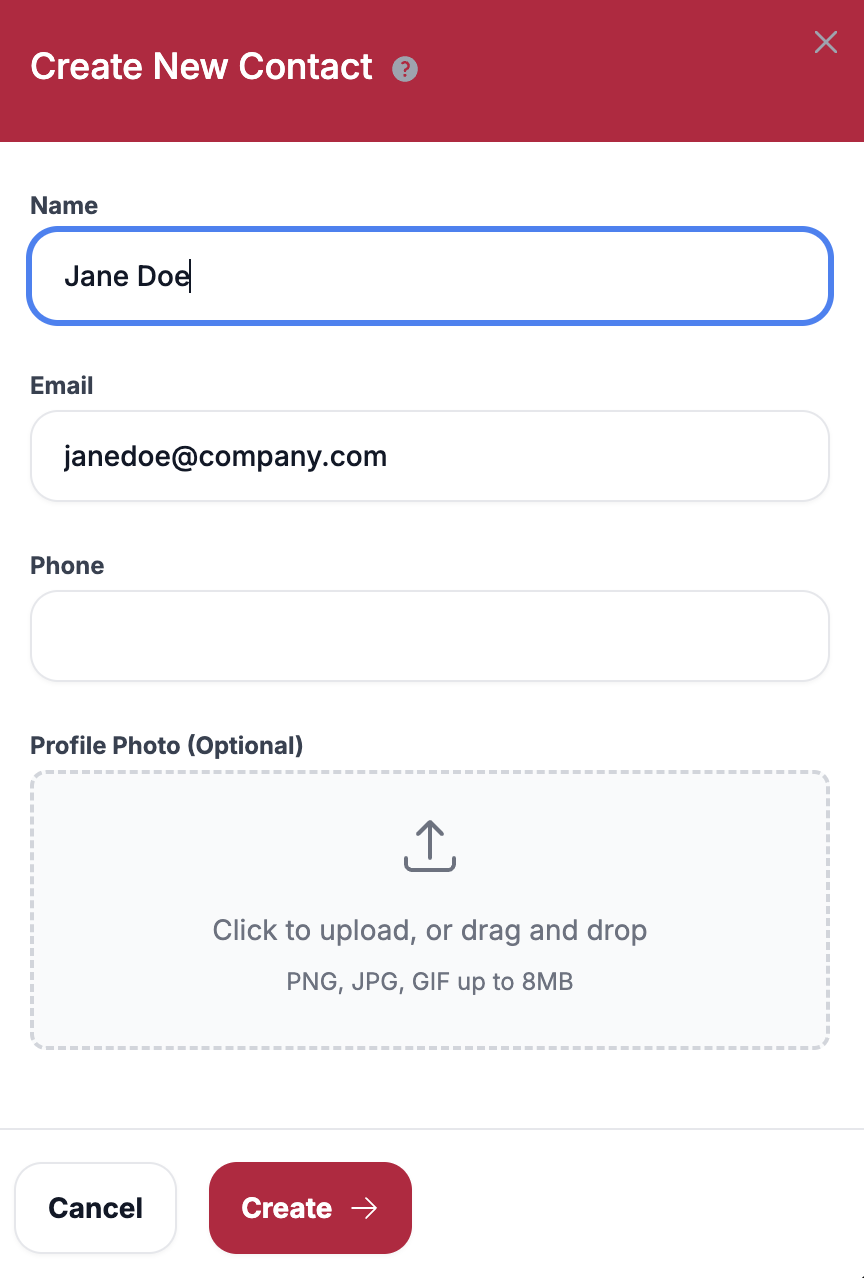
- You can upload a contact photo in PNG, JPG, or GIF format (maximum file size: 8MB).
- Click the Create button located at the bottom right.
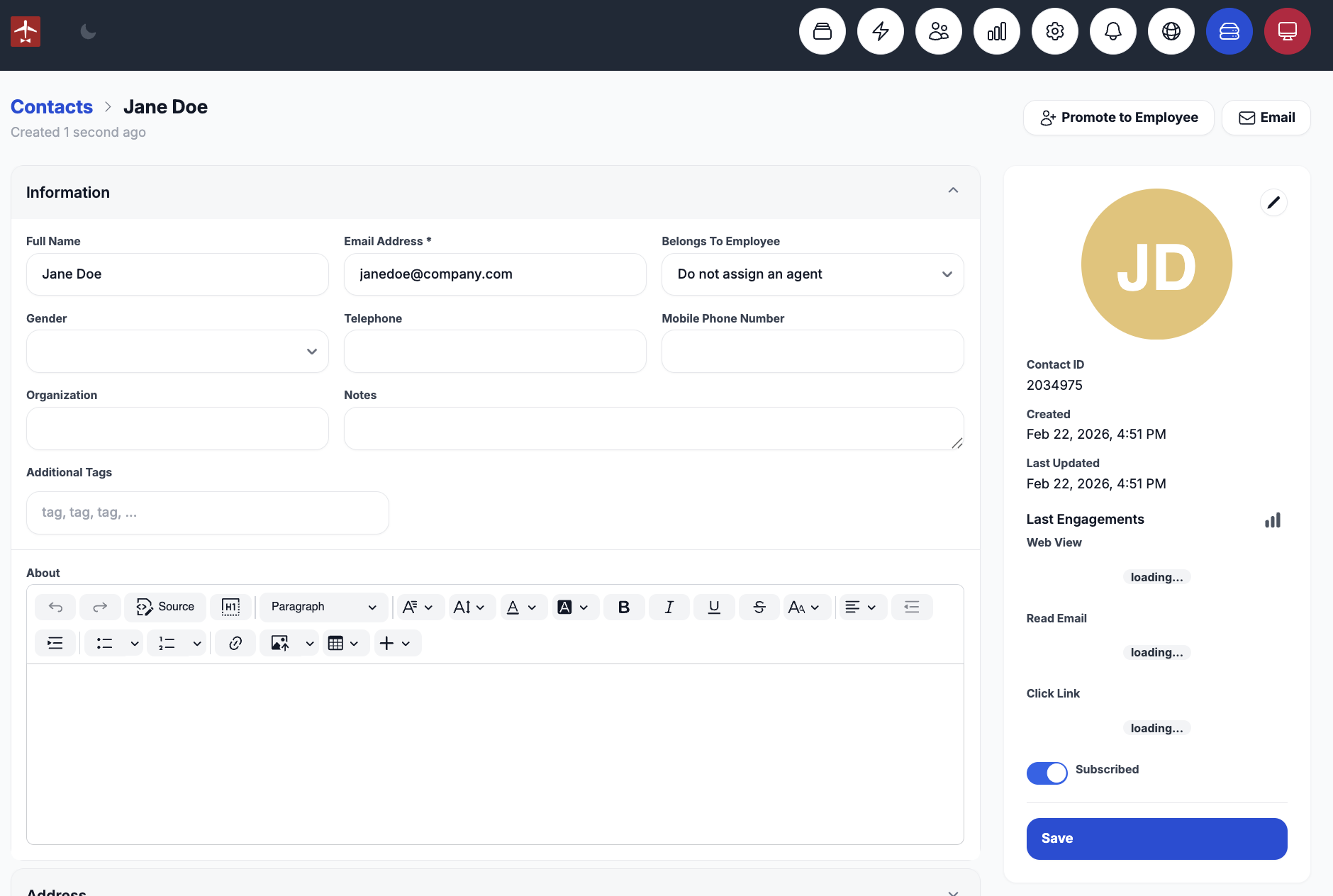
- After clicking Create, a new page will appear. Fill in any additional information you want to include, then click Save.
Managing Subscription Status
If the contact wants to unsubscribe, click the blue Subscribed toggle. When turned off, it will appear grey, indicating the contact is no longer subscribed.
Deleting a Contact
To remove a contact, click the Delete button.